Navigation UX: how to design interfaces users never get lost in
UX/UI design
June 12, 2026
Navigation UX: how to design interfaces users never get lost in
Oleksandr Koshytskyi
Lead Designer
11
min read
Every user arrives at your interface with intent. They have a task in mind or a problem they believe your product can solve. But instead of moving forward, they pause. What comes next is a vicious circle of scanning, clicking, going back, and trying again. As a result, what should feel obvious starts to feel like a burden.
This burden has a name — poor navigation UX.
Most products lose customers when the path to value is unclear or too demanding to figure out. And the more features you add, the worse it gets.
In this article, we uncover how navigation works: from core principles to real patterns, decision frameworks, and mistakes that derail conversion.
Key takeaways
Navigation UX is not UI. It’s the system shaping how users think and move inside your product.
The best navigation combines structure, wayfinding, and contextual guidance into one cohesive system.
Fixing navigation is a strategic decision: align it with your core user journey.
Why navigation UX matters
Navigation UX is one of the most critical layers of your product’s digital experience. With countless alternatives just a click away, users won’t wait to be understood. Capturing their intent early and responding to it instantly is what earns and keeps their attention.
Users don’t explore products out of curiosity. They evaluate them fast, often subconsciously, based on how easily they can move and act. Navigation is what enables or blocks this flow.
The data reinforces how little room there is for error:
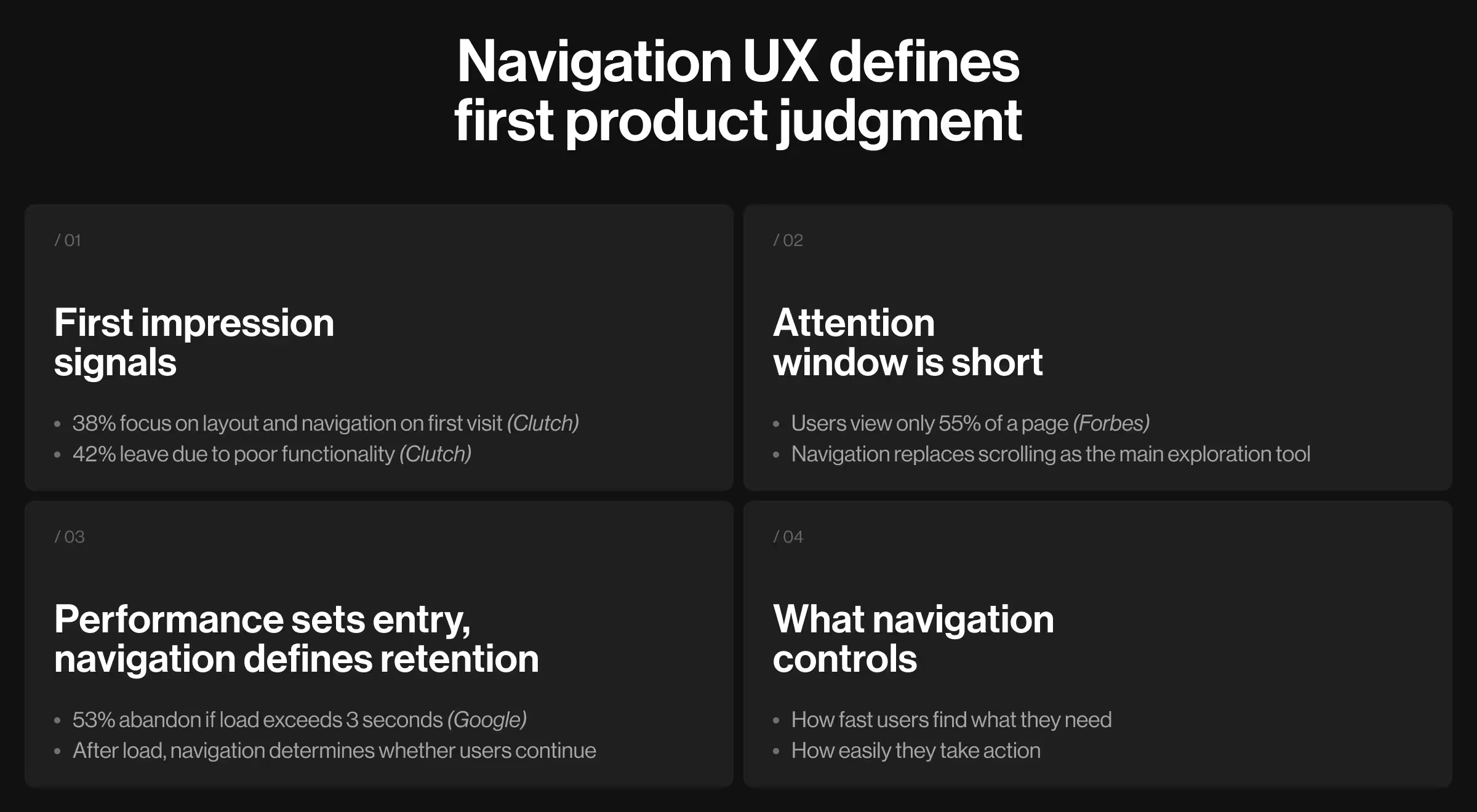
According to Google, 53% of visits are abandoned if a page takes longer than 3 seconds to load — speed sets the baseline, but navigation determines whether users stay once the page loads.
Forbes reports that, on average, users view only 55% of a page — users don’t scroll endlessly, they rely on navigation for quick access to deeper content.
Data from Clutch shows 38% of users focus on layout and navigation on the first visit, while 42% leave due to poor functionality — navigation is among the earliest signals of product quality.
These numbers highlight a clear pattern: users expect to be guided to the product’s value rather than to search for it.
At its core, navigation UX defines how users:
Understand where they are
Identify what’s available
Move toward completing a goal
From a business perspective, navigation has a direct impact on three performance metrics:
Retention — whether they return to your product and continue their journey.
Feature adoption — whether they want to seek value beyond the obvious paths.
When navigation works like an invisible guide, users are empowered to explore your product. When the user journey is confusing, they pause to think whether sticking around is worth it. That moment of creeping hesitation is a common precursor to disengagement and, more often than not, abandonment.
Types of UX navigation patterns and best use cases for each
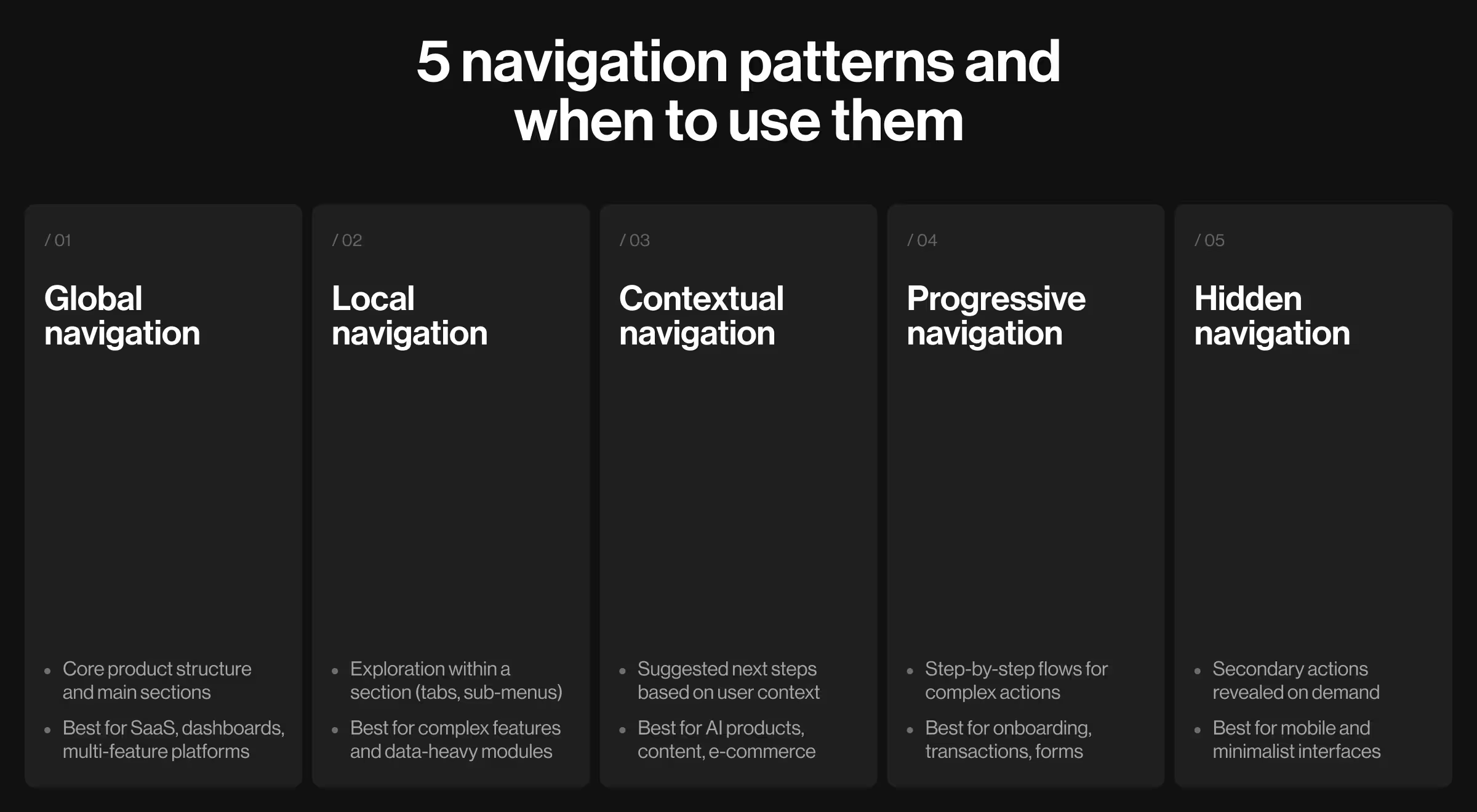
Navigation UX is a system of decisions. And like any complex structure, it can be approached from different angles. You can design it through the lens of structure (information architecture), behavior (user flows), or user interface design (menus, tabs, layouts).
In practice, this means combining multiple navigation patterns, each solving a unique problem: orientation, exploration, accessibility, and execution. Below are the core patterns, structured by how they function and where they create the greatest impact.
1. Global navigation
Global navigation defines the primary structure of a product. It’s the persistent layer users rely on to move between core sections. This is what users see immediately when they land on your product, e.g., a top bar or a sidebar.
✅ What it does:
Provides constant access to the main product areas
Anchors user orientation across the entire experience
Limit primary categories to avoid scanning fatigue
Use predictable navigation labels (“Dashboard” sounds clearer than “Command Center”)
Keep placement consistent across all screens
Prioritize high-frequency actions
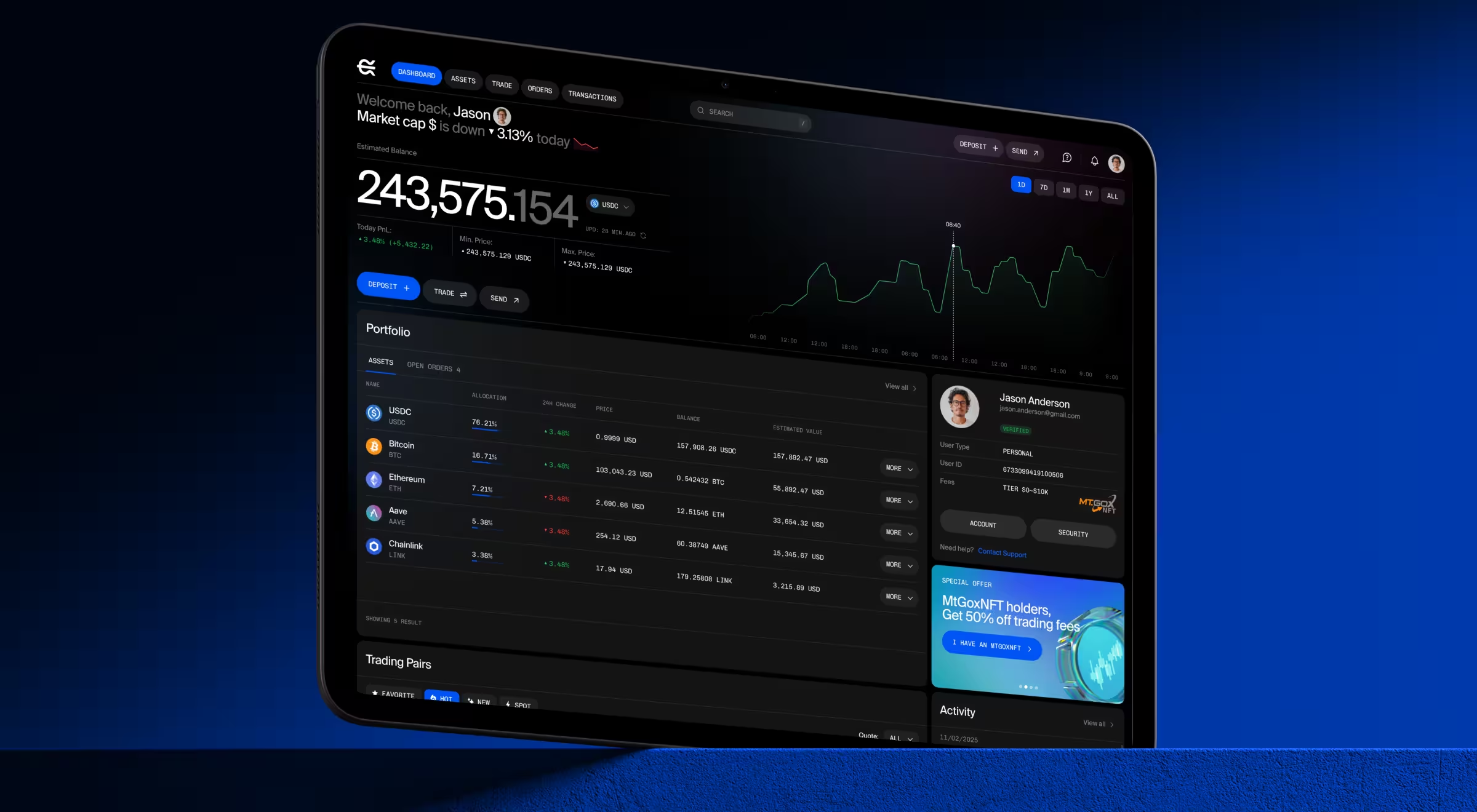
Practical example: In EllipX, the original product used both top and sidebar navigation, which considerably fragmented the UX flow. We consolidated everything into a single top-bar navigation by grouping functions and moving secondary actions into a user menu. This reduced confusion and freed up space for high-density financial data, making the product more intuitive and efficient.
2. Local navigation
Local navigation operates within a section. It helps users explore related features without losing context. You typically see it as secondary navigation elements, e.g., tabs (“Overview / Analytics / Settings”) or secondary sidebars inside a module.
✅ What it does:
Organizes content inside a specific area
Allows deeper interaction without switching sections
Supports feature-level exploration
🎯 Where it works best:
Complex feature sets
Data-heavy platforms
Modular product experiences
🧩 Design considerations:
Use tabs for shallow structures and side menus for deeper ones
Keep 3–5 options visible at once — anything more requires grouping with meaningful labels
Clearly distinguish active states (underline, italics, color, bold)
Keep terminology consistent with global navigation
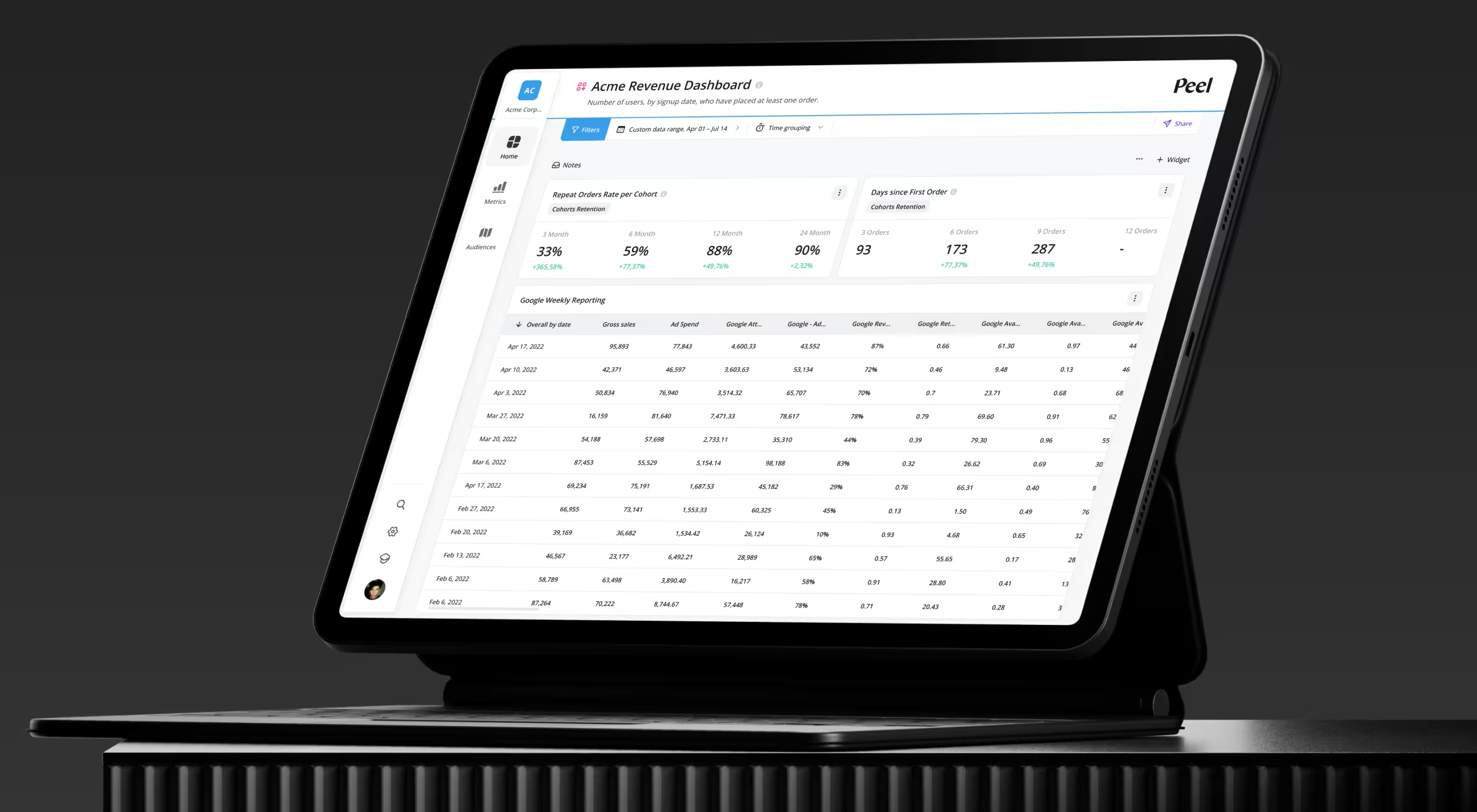
Practical example: In the Peel analytics platform, users struggled with an unstructured navigation system. We re-architected it by grouping features into three primary categories and separating secondary tools like search and settings pages. A revamped navigation system improved discoverability and significantly reduced time to insight.
3. Contextual navigation
Contextual navigation appears within the interface itself. It adapts based on what the user is viewing or doing. It shows up as “Related items”, inline links, smart prompts, or recommended actions embedded in the UI.
✅ What it does:
Suggests relevant next steps
Enables exploration without leaving the current context
Reduces reliance on primary navigation
🎯 Where it works best:
Content platforms
E-commerce
AI-driven products
🧩 Design considerations:
Tie suggestions directly to user intent
Limit options to 2–4 high-relevance actions
Place near natural decision points (end of article, below product, after action)
Use visual hierarchy to differentiate from primary content
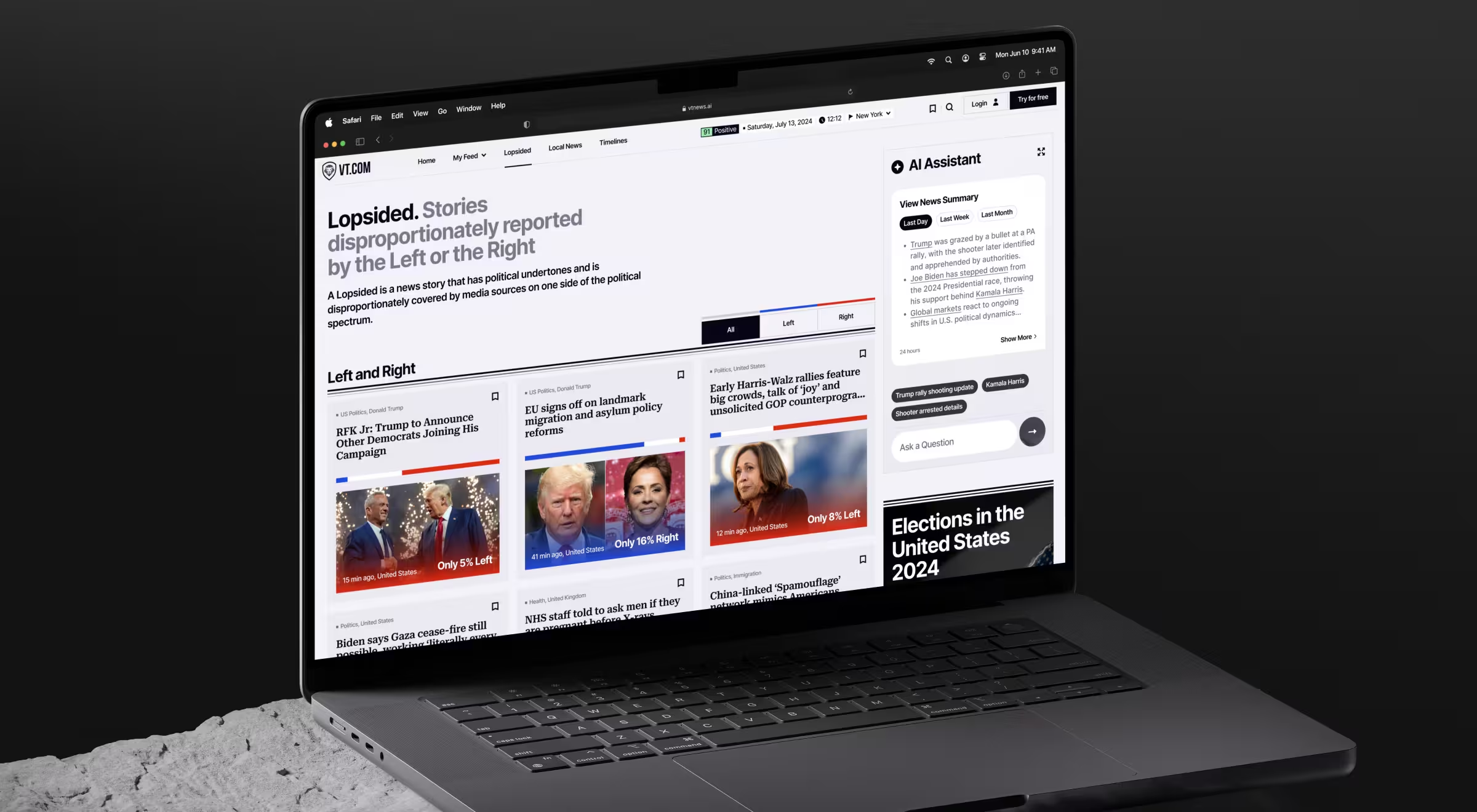
Practical example: In VTnews.ai, we designed contextual navigation through AI-generated prompts and topic-based interactions. Users can explore news stories, jump into discussions, and access related insights directly from the page they’re on. This shifts behavior from passive reading to active exploration.
4. Progressive navigation
Progressive navigation is the prerequisite for a positive user experience. Rather than exposing everything at once, it guides users through a controlled flow. You see this in onboarding checklists, multi-step forms, checkout flows, and setup wizards.
✅ What it does:
Breaks complex processes into manageable steps
Reduces cognitive overload
Improves completion rate
🎯 Where it works best:
Onboarding flows
Financial transactions
Multi-step forms
🧩 Design considerations:
Show progress clearly (e.g., “Step 2 of 5”, progress bars)
Keep each step focused on a single task
Allow backward navigation without losing data
Pre-fill or automate inputs where possible
Practical example: Stripe’s onboarding uses progressive navigation to guide users through account setup and identity verification. Each step is isolated, clearly labeled, and supported with contextual help, which makes a complex financial setup feel manageable.
5. Hidden navigation
Hidden navigation prioritizes minimalism by keeping options out of sight until needed. In practice, this includes hamburger menus, swipe gestures, expandable panels, or “more” menus.
✅ What it does:
Reduces visual clutter
Keeps interfaces clean and focused
Reveals actions on demand
🎯 Where it works best:
Mobile devices
Minimalist products
Secondary or infrequent actions
🧩 Design considerations:
Never hide primary actions
Use familiar patterns (hamburger, ellipsis, swipe) to avoid confusion
Combine with visible navigation for critical flows
Keep interaction consistent (same gesture = same outcome)
Practical example: Instagram combines visible bottom navigation with hidden gesture-based interactions (e.g., swipe between stories, long-press menus, hidden options in messages). This keeps the interface minimal while still enabling advanced interactions for experienced users.
Elements of navigation UX: structures, menus, wayfinding tools, and contextual elements
The patterns above define how navigation behaves. Here, we’ll focus on the concrete UI elements that bring those patterns to life.
“Navigation UX is a combination of structural components (search bar, menus), orientation tools (breadcrumbs, indicators), and interaction layers (dropdowns, gestures). If you want to strengthen the navigation logic of your product, start with the home screen. There, the navigation model announces itself — app home screen examples shows five ways teams handle it.”
{{Anna Demianenko}}
Below is a structured comparison of the most widely used navigation elements: what they are, when to use them, and the trade-offs they introduce.
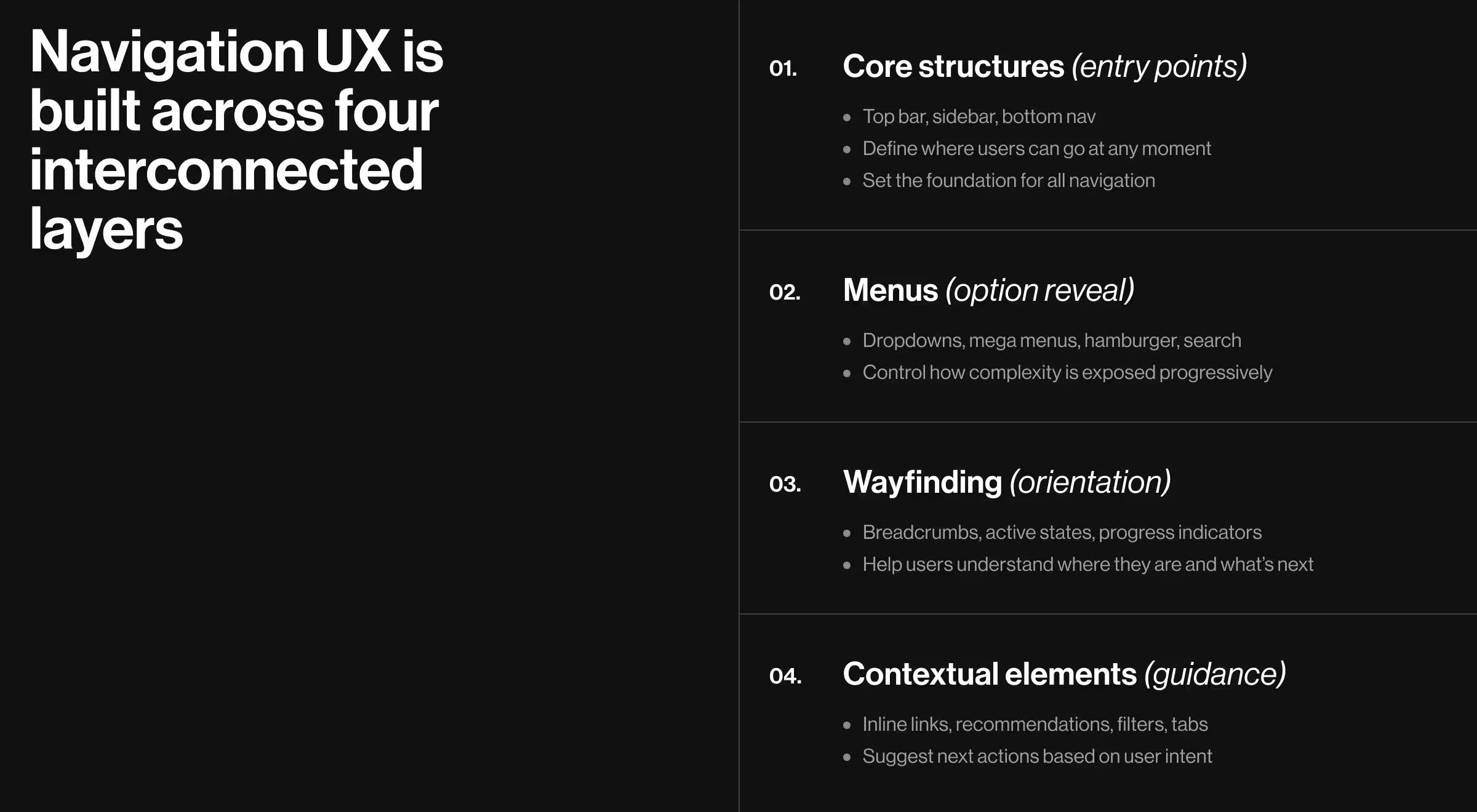
This layer defines the entry points into your product. It answers a simple but critical question: Where can users go at any moment?
Should this layer be weak, everything downstream, like menus, flows, and discovery, breaks. Strong navigation starts here by giving users a stable, always-available map of the product.
Element
What it is
When to use
Pros
Cons
Horizontal navigation bar
Top-aligned menu listing main sections
Marketing sites, simple products
Familiar, fast scanning, strong branding
Limited scalability
Sidebar navigation
Vertical menu on the left or right side
SaaS, dashboards, enterprise tools
Scalable, always visible, supports depth
Takes space, can overwhelm
Sticky navigation
Navigation that stays visible on scroll
Long pages, content-heavy sites
Always accessible, improves usability
Can feel intrusive
Bottom navigation (mobile)
Fixed bottom bar for key actions
Mobile apps with a few core sections
Thumb-friendly, fast access
Limited space
💡 Practical insight: Choose the structure based specifically on product depth. If your product grows beyond 5–7 sections, top navigation alone will collapse. This is where sidebars and hybrid systems work best.
2. Menu types (interaction and expansion layers)
If structures define where users can go, menus define how options are revealed. This layer is about progressive disclosure: showing just enough to guide decisions without overwhelming users.
Element
What it is
When to use
Pros
Cons
Dropdown menu
Expands list on click/hover
Moderate content depth
Space-saving, clean UI
Harder on mobile
Mega menu
Large multi-column dropdown
E-commerce, large content systems
Shows many options clearly
Can overwhelm
Hamburger menu
Hidden collapsible menu
Mobile, minimalist UI
Reduces clutter
Low discoverability
Command menu / search
“Type to navigate” interface
Advanced SaaS, power users
Fast, scalable
Requires learning
💡 Practical insight: Menus should scale with complexity. If users need to “hunt” inside your menu, your structure (not your UI) is the problem.
3. Orientation and wayfinding elements (user awareness layer)
Smooth navigation is not only about moving forward. At its best, navigation ensures users can progress with a clear awareness of where they are, what they’ve done, and how to go back.
The core objective of this layer is to reduce hesitation. Without it, even well-structured products feel confusing.
Element
What it is
When to use
Pros
Cons
Breadcrumbs
Path trail (Home > Category > Page)
Deep hierarchies, e-commerce
Clear orientation, easy backtracking
Needs a structured hierarchy
Active states
Highlight current location
All products
Instant clarity, reduces confusion
Often underdesigned
Progress indicators
Step indicators (e.g., 2/5)
Forms, onboarding
Reduces uncertainty
Adds complexity to user interface
In-page anchors
Jump links within a page
Long content, docs
Faster navigation
Can clutter UI
💡 Practical insight: Users should never need to stop and think “Where am I?” If they do, your navigation system is incomplete.
4. Contextual and adaptive navigation elements (dynamic layer)
This is where navigation becomes intelligent and responsive. Instead of forcing users to search, the interface suggests what matters next.
Element
What it is
When to use
Pros
Cons
Inline links / CTAs
Navigation within content
SaaS, content platforms
Keeps flow, drives action
Easy to miss
Recommendations
Suggested content or actions
Ecommerce sites, media
Boosts user engagement
Needs relevance
Filters and facets
Refine large datasets
E-commerce, analytics
Precise control
Can overwhelm
Tabs
Grouped content sections
Feature-level navigation
Clean segmentation
Limited scalability
💡 Practical insight: Contextual navigation is where you shape user behavior. Don’t wait for users to search — anticipate what they need next. Place actions exactly where decisions happen (after reading, after clicking, after completing a task).
Common navigation UX mistakes and how to fix them
Most teams don’t notice the problem with their product’s UX because menus are there, and everything seems accessible (at least at first glance). But under the surface, users are second-guessing every click and missing key actions.
Here, we discuss the most common navigation mistakes eroding performance and show how to fix them with strategy-driven UX solutions.
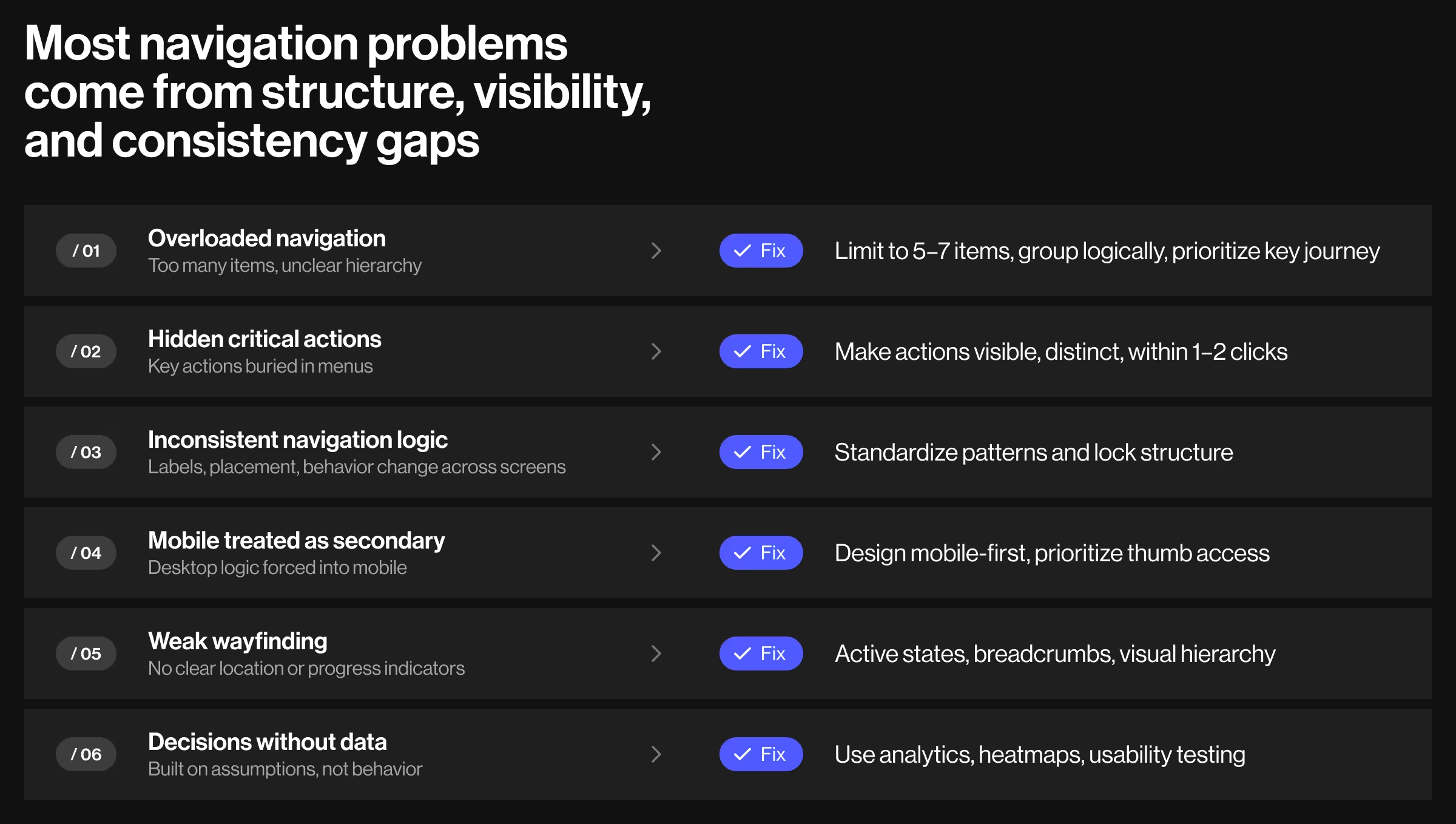
1. Overloaded navigation
What happens: Menus become a dumping ground for features. Every team wants visibility, so navigation grows into 10–15 items with vague labels and no hierarchy whatsoever.
🟩 How to fix it:
Cap primary navigation at 5–7 items max
Group secondary items under clear parent categories
Ensure interface elements have descriptive labels
Use progressive disclosure we’ve already talked about
Expert tip: When teams can’t align on what belongs on the product roadmap, everything gets promoted to the top level. The solution must be strategic. Define the single primary user journey driving revenue (other KPI), and structure navigation around it. Everything else should either support this path or be intentionally deprioritized.
2. Hidden critical actions
What happens: Key actions (e.g., “Upgrade,” “Create,” “Checkout”) are buried inside menus or secondary screens in the name of minimalism.
🟩 How to fix it:
Make primary actions visible and visually distinct
Use contrast, size, and placement to convey importance
Keep critical actions within 1–2 clicks from entry points
Pair global navigation with contextual CTAs
Expert tip: High-performing products treat primary actions as navigation anchors, as we illustrate in our expert UI examples blog using Slack's task-oriented navigation as one of the benchmarks. They are persistently visible and often repeated across key screens.
3. Inconsistent navigation logic across screens
What happens: Navigation behaves differently across pages. When menus move and labels change, users refuse to keep up with inconsistency and abandon your product.
🟩 How to fix it:
Standardize navigation patterns across the entire product
Lock placement (top, sidebar, bottom) and interaction rules
Use a design system with strict navigation guidelines (our design system 101 will be of help here)
Expert tip: Users spot the slightest evidence of inconsistency almost immediately. Every sign of it forces the brain to switch from “to-do” mode to interpretation mode — an extra task no one’s excited to take on. That’s why treating navigation patterns as a unified infrastructure is key. Once established, it must remain stable even as features evolve.
4. Mobile navigation as an afterthought
What happens: Desktop navigation is compressed into a hamburger menu without rethinking behavior.
🟩 How to fix it:
Design mobile navigation separately from desktop computers
Use bottom navigation for primary actions
Keep key actions within thumb reach zones
Expert tip: Mobile sessions are much shorter and more goal-driven. Approach mobile navigation as a distinct task-execution layer. If a feature is critical, it should be accessible within one tap. Mobile UX thrives on intentionality and speed.
5. Poor wayfinding strategies
What happens: No breadcrumbs, weak active states, unclear page hierarchy.
Expert tip: Solidproduct orientation gives users confidence to continue exploring. Without it, every action feels risky. Strong wayfinding systems establish a sense of control: users always know where they are and what’s next. This is especially critical in complex or high-stakes environments (fintech, AI tools, enterprise systems), where uncertainty derails engagement.
6. Designing navigation without data
What happens: Navigation decisions are based on assumptions or trends.
🟩 How to fix it:
Track click paths, drop-offs, and heatmaps
Analyze top user flows and bottlenecks
Run usability tests focused on task completion
Iterate based on real behavior
Expert tip: The best way to evaluate navigation is through behavioral data. Look for signals like repeated clicks and drop-offs at decision points. These patterns reveal where navigation is slowing users down and what needs optimization. A design system audit can complement this by exposing where navigation breaks at the system level.
Treat navigation UX as your product’s OS
Navigation is the invisible threat holding your product together.
When it works, users stick around because they’re empowered to explore and learn more about what your business has to offer. When navigation doesn’t meet user expectations, even the best features feel inaccessible.
As products grow in complexity, especially AI-driven ones, navigation becomes the difference between usable and overwhelming.
If your product is expanding, your navigation system should evolve with it. Have a look at our portfolio to explore how our Lazarev.agency team designs usable, AI-ready navigation systems that keep products intuitive as they grow.
For a more personalized debrief on how to make your product’s UX easy to navigate, reach out here.
What does accessibility in UX design mean for B2B products?
It means a user can complete core workflows (onboarding, key actions, data review) regardless of how they see, hear, or interact with the interface. For B2B platforms, where sessions are long and tasks are complex, the bar is higher than it sounds. A screen reader needs to parse your dashboard. Keyboard-only users need to navigate dense data tables. If any of those paths break, you're losing users you never knew you had. Retrofitting accessibility after launch costs significantly more than building it in from the start — and by then, the patterns your team ships on top of are already baked in.
How is inclusive design different from accessible design — and does it matter which approach we take?
Accessible design sets the bar: can users with disabilities perceive, operate, and understand your product? Inclusive design is the method — you account for diverse needs from the first research sprint, while the product is still taking shape. The practical difference matters because teams starting with inclusive design tend to catch accessibility failures earlier, in flows and IA, before they're baked into components. Teams treating accessibility as a late-stage checklist usually find problems expensive to fix. We'd always recommend treating accessibility as the requirement and inclusive design as the process to meet it.
Where do most B2B products fail on WCAG compliance — and where should we focus first?
The failures we see most often aren't exotic. They're missed contrast ratios on data-heavy screens, broken keyboard navigation in modals and dropdown menus, and invisible focus states that leave users guessing where they are. For AI and data products specifically, the biggest gap is usually feedback. The system does something, and users who rely on assistive tech have no idea what changed. If you're prioritizing, start with your highest-traffic flows: onboarding, search, and whatever action drives your core metric. Test those with a screen reader and keyboard-only navigation. You'll find the worst issues fast.
Our product team is small. Can we build accessibility into our design system without slowing down the roadmap?
Yes, and it's faster long-term than patching individual screens. When accessibility defaults live inside your design system components (contrast ratios, focus states, tap target sizes, ARIA roles), every new feature ships accessible by default. Your designers stop making one-off decisions about button sizes or error message patterns. At Lazarev.agency, system-level accessibility is part of how we build and extend design systems. We define accessible defaults for typography, inputs, navigation, and feedback components once, document them for your devs, and then everything built on top inherits those properties. The upfront investment pays for itself within the first two sprints.
How do we test accessibility in UX if we don't have dedicated QA for it?
You don't need a dedicated accessibility QA team to start. Combine three layers: automated audits (Axe DevTools or Lighthouse catch structural violations fast), screen reader walkthroughs (NVDA on Windows, VoiceOver on Mac — navigate your core flows without looking at the screen), and zoom/scaling tests (browser zoom at 200% across your main journeys). Most teams can run this in a single afternoon and surface the top 10 issues. The key is testing at the flow level, not the component level. A button can pass every WCAG check individually and still break the experience when it sits inside a modal with no keyboard escape.
How does Lazarev.agency approach accessibility in product design engagements?
We treat it as a structural UX task. Accessibility shows up in our first research sprint. We identify which users face barriers, map risks across core flows, and pressure-test IA decisions before we open Figma. When we build or extend a design system, accessible defaults are baked into components: typography scale, contrast, focus and error states, form patterns, navigation logic. We document everything with ARIA expectations so your devs ship correctly the first time. For AI-heavy products specifically, we pay close attention to how the system communicates state changes to assistive tech — that's where most AI platforms quietly fail their users.
Keep reading
Related articles you might find useful
UX/UI design
July 29, 2026
Personalized UX in 2026: patterns and pitfalls
Oleksandr Holovko
Product Lead at Lazarev.agency
UX/UI design
July 7, 2026
5 dashboard UI examples teaching you how to level up
Oleksandr Koshytskyi
Lead Designer
UX/UI design
June 22, 2026
Product-led growth: why your UI/UX is your sales team



.avif)